

You need the Order or Admin role to reorder. See Roles and permissions.
1
Open Reorder
Open the More ways to order menu (the arrow next to + New order) and choose Reorder.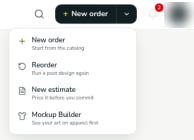
2
Find the order
On Search for an Order to Reorder, type an order number or PO number. Results appear as you type. To narrow the results by date, fill in From and To.Each result shows the order number, its status, the job name, the PO number, the number of items, the price, and the date, with thumbnails of the artwork. Select the order you want.
3
Check what carried over
The order builder opens with the past order’s products and decorations already in place.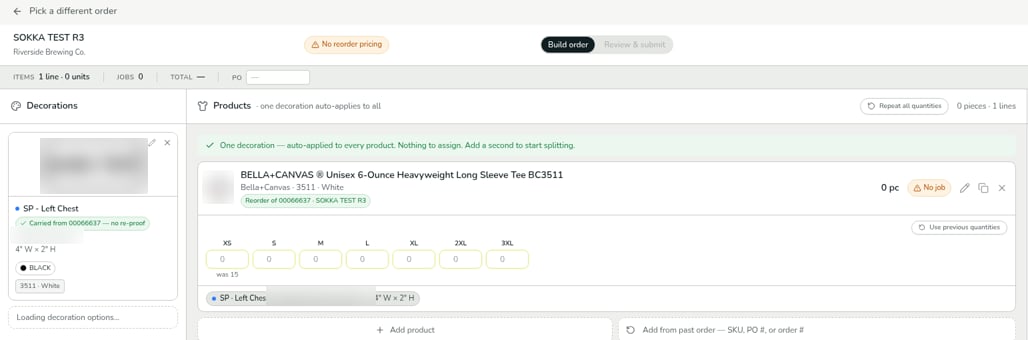
- Each product is labeled Reorder of the original order number and name.
- Each decoration is labeled Carried from the original order number — no re-proof. Your artwork was already approved on that order, so it doesn’t need a new proof.
4
Enter quantities
The quantity boxes start empty. Under each size you ordered before, a hint shows the earlier quantity, for example was 15.Type new quantities for each size. Each product also has a Use previous quantities button.
5
Review and submit
Select Continue to Review → and finish the order the same way as a new one. See the last step of Place your first order.
Reorder pricing
Reorders can get lower pricing, such as a per-screen discount and waived digitizing. If the order you picked never went into production, you’ll see a No reorder pricing badge at the top of the builder: reorder pricing doesn’t apply, so the order is priced like a new one.Your reorder is saved as a draft
Your reorder is saved automatically under Orders > Draft Orders, marked Reorder. Select Resume to pick up where you left off, or delete the draft if you don’t need it.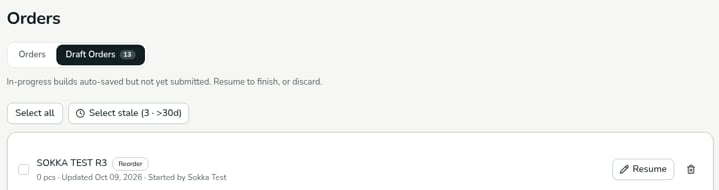
Verified against DEKHQ 41cdde7 on 2026-10-09