

Get access
There’s no self sign-up. Your decorator’s account manager adds you to their portal and sends you an invitation email. The email comes from your decorator, under their name. Your account is ready as soon as you’re added. You don’t need to create a password. Your decorator gives you the link to their portal. If you haven’t received an invitation, contact your account manager.Sign in
DEKHQ doesn’t use passwords. Each time you sign in, you get a one-time code by email.1
Enter your email
Open your decorator’s portal link. Enter the email address your decorator invited, then select Continue.
2
Check your email for a code
DEKHQ sends a 6-digit code to that address. The screen changes to Check your email.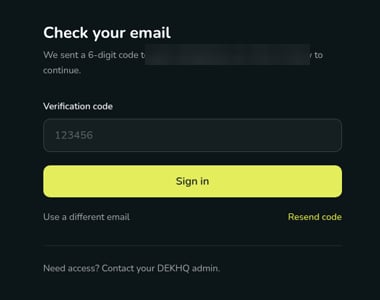
3
Enter the code
Type the code into Verification code, then select Sign in. You land on your portal’s Home page.
If sign-in doesn’t work
- You see “Incorrect code”. Check the code against the most recent email and try again, or select Resend code to get a new one.
- The email never arrives. Check your spam or junk folder. Make sure you entered the same address your decorator invited. Then select Resend code. If it still doesn’t arrive, contact your account manager and confirm which email address they added.
Roles
Your decorator gives each person on your account one or more roles. Everyone can see the Home page and your orders. Roles add the actions you can take.To place an order, you need the Order or Admin role. If you don’t see a New order button, ask an Admin on your account or your account manager to add the Order role. Invoices appears in the menu only for people with the Finance or Admin role.
Verified against DEKHQ 41cdde7 on 2026-10-09