> ## Documentation Index
> Fetch the complete documentation index at: https://docs.dekhq.com/llms.txt
> Use this file to discover all available pages before exploring further.
# Track your order status
> Find your orders, filter them by status, and read your order's page: the ship-to, method, ship-by, and sign-off tiles, the stage timeline, and the totals.
## Find your orders
Select **Orders** in the top menu. The page has two views:
* **Orders**: orders you've placed.
* **Draft Orders**: orders you started but haven't submitted yet. See [Place your first order](/help/getting-started/place-your-first-order).
Use the chips at the top of **Orders** to filter the list:
| Chip | Shows |
| - | - |
| **All** | Every order. |
| **Needs you** | Orders waiting on something from you. |
| **In production** | Orders being made. |
| **Shipped** | Orders on their way. |
| **Complete** | Finished orders. |
Your orders in progress also appear under **In the works** on the **Home** page, with the current stage.
## Read your order's page
Select an order to open its page.
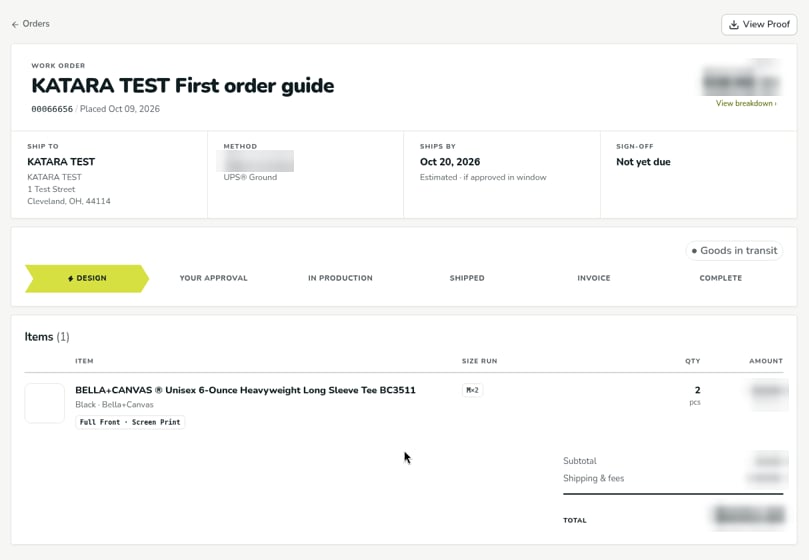 **The header** shows the order name, the order number, the date it was placed, and the total. Select **View breakdown** to see how the total splits into products, decoration, and fees. **View Proof** at the top right opens your proof in a new tab, where you can download it as a PDF. See [Review and approve your order](/help/guides/review-and-approve#view-or-download-your-proof).
**The tiles** below the header:
| Tile | What it shows |
| - | - |
| **Ship to** | Where the order is going. |
| **Method** | Who ships it, for example **Ships via** and your decorator's name, and the shipping service. |
| **Ships by** | The ship-by date. Before you approve, it's an estimate marked *Estimated · if approved in window*. |
| **Sign-off** | Whether your approval is needed: **Not yet due**, **Awaiting you** (with the deadline), or **Approved**. See [Review and approve your order](/help/guides/review-and-approve). |
When your approval is needed, a **Ready for you** banner appears below the tiles, with a countdown and a **Review & approve** button.
**The timeline** shows the order's stage. The current stage is highlighted, and stages already passed are filled in.
| Stage | What it means |
| - | - |
| **Design** | Your decorator's art team is preparing your artwork and proof. |
| **Your Approval** | Your decorator is waiting for your approval. |
| **In Production** | Your order is being scheduled, sourced, decorated, and packed. |
| **Shipped** | Your order is on its way. |
| **Invoice** | Your order is being invoiced. |
| **Complete** | Your order is finished. |
**Items** lists each product with its sizes, quantity, and amount, followed by the **Subtotal**, **Shipping & fees**, and **Total**.
The order page doesn't show shipment tracking. For tracking details on a shipped order, message your account manager from the chat button in the lower right corner of the order page.
## Related
* [Reorder a past order](/help/guides/reorder)
* [Invoices and payment](/help/guides/invoices)
***
Verified against DEKHQ 41df3d0 on 2026-10-09
This documentation is built and hosted on [Mintlify](https://mintlify.com), a developer documentation platform.
**The header** shows the order name, the order number, the date it was placed, and the total. Select **View breakdown** to see how the total splits into products, decoration, and fees. **View Proof** at the top right opens your proof in a new tab, where you can download it as a PDF. See [Review and approve your order](/help/guides/review-and-approve#view-or-download-your-proof).
**The tiles** below the header:
| Tile | What it shows |
| - | - |
| **Ship to** | Where the order is going. |
| **Method** | Who ships it, for example **Ships via** and your decorator's name, and the shipping service. |
| **Ships by** | The ship-by date. Before you approve, it's an estimate marked *Estimated · if approved in window*. |
| **Sign-off** | Whether your approval is needed: **Not yet due**, **Awaiting you** (with the deadline), or **Approved**. See [Review and approve your order](/help/guides/review-and-approve). |
When your approval is needed, a **Ready for you** banner appears below the tiles, with a countdown and a **Review & approve** button.
**The timeline** shows the order's stage. The current stage is highlighted, and stages already passed are filled in.
| Stage | What it means |
| - | - |
| **Design** | Your decorator's art team is preparing your artwork and proof. |
| **Your Approval** | Your decorator is waiting for your approval. |
| **In Production** | Your order is being scheduled, sourced, decorated, and packed. |
| **Shipped** | Your order is on its way. |
| **Invoice** | Your order is being invoiced. |
| **Complete** | Your order is finished. |
**Items** lists each product with its sizes, quantity, and amount, followed by the **Subtotal**, **Shipping & fees**, and **Total**.
The order page doesn't show shipment tracking. For tracking details on a shipped order, message your account manager from the chat button in the lower right corner of the order page.
## Related
* [Reorder a past order](/help/guides/reorder)
* [Invoices and payment](/help/guides/invoices)
***
Verified against DEKHQ 41df3d0 on 2026-10-09
This documentation is built and hosted on [Mintlify](https://mintlify.com), a developer documentation platform.